
Best GoPro MISSION 1 Pro settings, explained
Every video setting on one page: what it does, its options, and where to start. Blue marks our suggested starting point.
- 16 settings
- Options as the camera lists them
- Best settings for 4 situations
Overcrank is free to start. iOS 17 and watchOS 10 or later.
Best settings, by situation
What are the best MISSION 1 Pro settings?
For everyday video: 4K, 30 fps, Linear lens, HyperSmooth Auto Boost, Natural colour, and Auto for shutter, ISO and white balance. Change one thing at a time from there.
What are the best MISSION 1 Pro slow motion settings?
Raise the frame rate: 120 or 240 fps at 4K 16:9, or up to 480 fps at 1080p or 1440p. GoPro says 240 fps still plays smoothly slowed down 8 times.
What are the best MISSION 1 Pro cinematic settings?
24 or 30 fps, a fixed shutter at about double the frame rate, a fixed white balance, and Cinematic colour, or GP-Log2 if you'll grade.
What are the best MISSION 1 Pro low light settings?
Use the Low Light mode or 24 to 30 fps, and avoid GP-Log2: GoPro limits ISO to 400 in Log and doesn't recommend it for darker scenes.
Can I change MISSION 1 Pro settings from an Apple Watch?
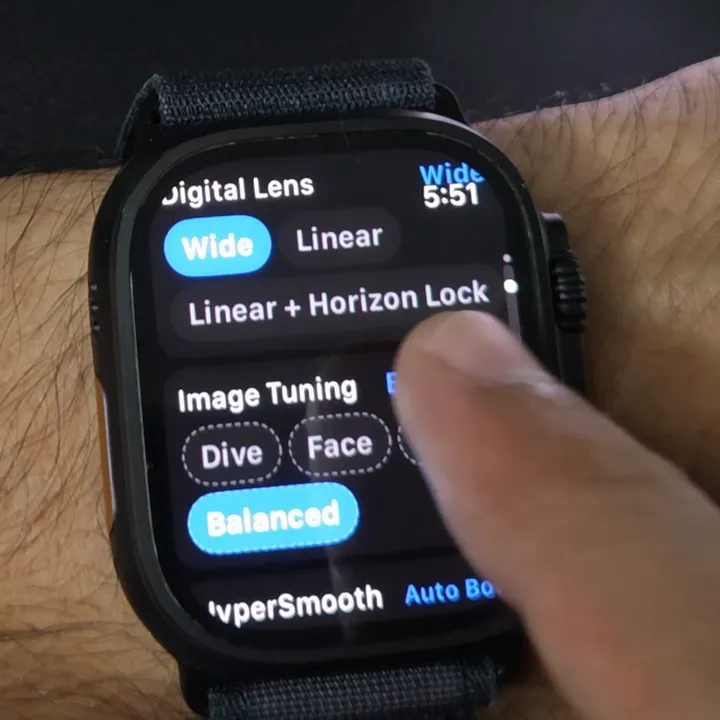
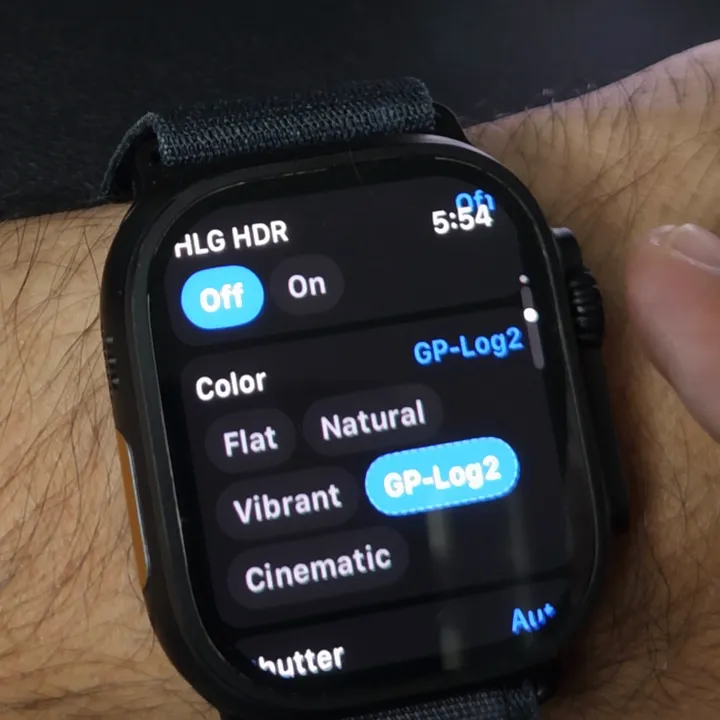
Yes, with a third-party app, since GoPro no longer makes a watch app. The settings photos on this page are an Apple Watch Ultra running Overcrank Pro, connected to a MISSION 1 Pro. Every GoPro Apple Watch app, compared.
Frame and motion
Resolution
How many pixels are recorded. More means more detail, but a hotter camera, shorter battery life and bigger files.
- 8K
- 4K (suggested)
- 1440p
- 1080p
Start with 4K. Plenty of detail without 8K's heat and file sizes. Pick 8K when you'll crop in the edit.
Aspect ratio
The shape of the frame.
- 16:9 (suggested)
- 4:3
- 9:16
Start with 16:9. For YouTube and TV. 4:3 gives a taller frame to reframe later; 9:16 is for Shorts and Reels.
Frame rate
Frames per second. More frames mean smoother motion and slower slow motion.
- 24
- 30 (suggested)
- 60
- 120
- 240
- 480
Start with 30. Normal playback. Use 60 for fast action and 120 or more to slow it down. The fastest rates need lower resolutions.
Digital lens
How wide the view is.
- SuperView
- Wide
- Linear (suggested)
- Linear + Horizon Lock
Start with Linear. Wide, without the fisheye curve. Wide is the classic GoPro look. Horizon Lock needs Linear with HyperSmooth on.
HyperSmooth
Stabilisation. It crops the image slightly to keep it steady.
- Off
- Low
- Auto Boost (suggested)
Start with Auto Boost. It crops only when it needs to. Turn it off on a tripod. It can change your frame rate: see how.
Motion blur
How much blur moving things keep.
- Max Blur Reduction
- Adaptive (suggested)
- Cinematic Low
- Cinematic Medium
- Cinematic High
Start with Adaptive. Let the camera decide. The Cinematic options keep more blur for a filmic look.
Picture quality
Image tuning
Processing tuned for the scene.
- Balanced (suggested)
- Sport
- Dive
- Face
Start with Balanced. For everyday shots. Sport for fast movement, Dive underwater, Face for talking to camera.
Bit depth
How many colours are recorded: over 16 million at 8-bit, over a billion at 10-bit.
- 8-bit (suggested)
- 10-bit
Start with 8-bit. GoPro says 10-bit is only worth it if you'll colour grade.
Bit rate
How much data is recorded each second. More means less compression and bigger files.
- Standard
- High (suggested)
- Max
Start with High. Max if you'll grade the footage.
Color
The colour profile.
- Vibrant
- Natural (suggested)
- Cinematic
- Flat
- GP-Log2
Start with Natural. Realistic colour. Vibrant adds pop with no editing. Flat and GP-Log2 are for grading: Log settings.
HLG HDR
HDR video for scenes with very dark and very bright areas.
- Off (suggested)
- On
Start with Off. GoPro says it's meant for watching on HDR displays.
Sharpness
How crisp or soft the video looks.
- Low
- Medium (suggested)
- High
Start with Medium. Low leaves more room if you'll edit.
Exposure and colour temperature
Shutter
How long each frame is exposed. Longer is brighter and blurrier.
- Auto (suggested)
- Fixed
- Range
Start with Auto. Fixed at about double your frame rate (1/60 at 30 fps) gives natural motion blur; in daylight that needs an ND filter.
EV Comp
Makes the whole picture brighter or darker than the camera would choose.
- −1.0
- −0.5
- 0.0 (suggested)
- +0.5
- +1.0
Start with 0.0. Try −0.5 to keep bright skies from blowing out. Range: −2.0 to +2.0.
White balance
How warm or cool colours look.
- Auto (suggested)
- 3200K
- 4500K
- 5500K
- 6500K
- Native
Start with Auto. Fix a value (2300K to 6500K) when shooting Log or matching cameras.
ISO
Brightens the image electronically, adding noise as it goes up.
- Auto (suggested)
- Fixed
- Range
Start with Auto. Use Range to cap the noise; GoPro says to keep ISO as low as you can.
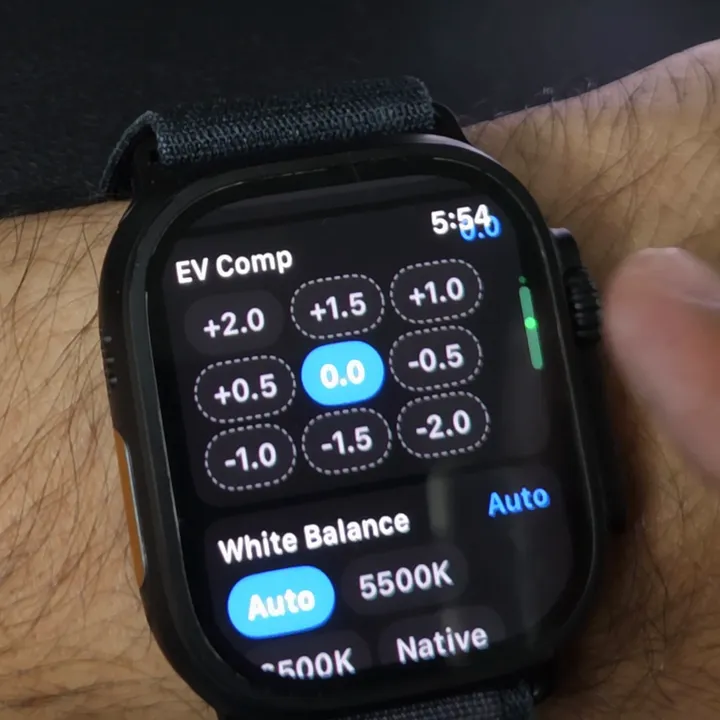
Descriptions follow GoPro's settings article; which options you get depends on resolution and frame rate (see GoPro's MISSION 1 PRO table). White balance and EV Comp show a selection of their values.
Overcrank is an independent app, not affiliated with or endorsed by GoPro, Inc. Photos and clip: GoPro MISSION 1 Pro and Apple Watch Ultra, 30 August 2026.